7 Calendar Design Ideas for a Page You’ll Want to Use
Explore seven practical calendar design ideas, from quiet monthly pages to photo calendars and project overviews, with examples you can adapt.
In this article
- 1. A quiet monthly page with one accent color
- 2. A family calendar with names beside the dates
- 3. A photo-led calendar with a clear date area
- 4. A weekly work page with room for unfinished tasks
- 5. A seasonal palette with a consistent layout
- 6. A year overview for a small set of milestones
- 7. A notes-first page for a specific activity
- Turn the idea into a printable page
A useful calendar design starts with what belongs on the page. A month of appointments needs writing space. A year overview needs short labels. A photo calendar needs enough room for both the picture and the dates. Choose that structure first, then use color, type and artwork to make it feel at home.
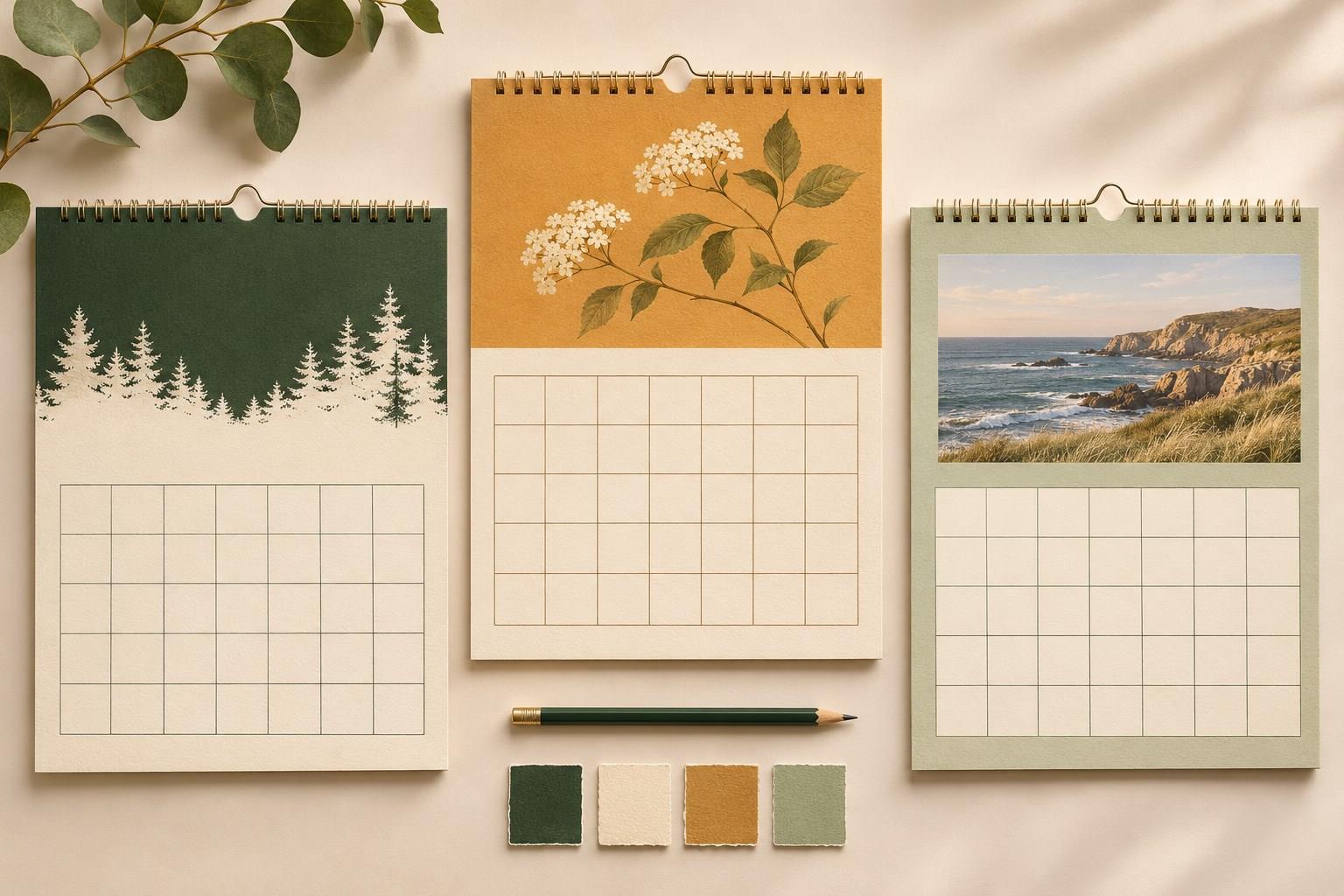
Here are seven directions to try in TimeCubby Calendar Designer. The cover is an illustrative mood board; the examples within the article were made with the designer. Start with one page so you can judge the result at its actual print size.
1. A quiet monthly page with one accent color
Use a light background, dark date numbers and one accent for the month heading or important entries. Forest green with cream makes a calm starting point. Keep most cells plain if you expect to add appointments by hand. Before printing, check that pale grid lines and small labels are still visible on your printer.
2. A family calendar with names beside the dates
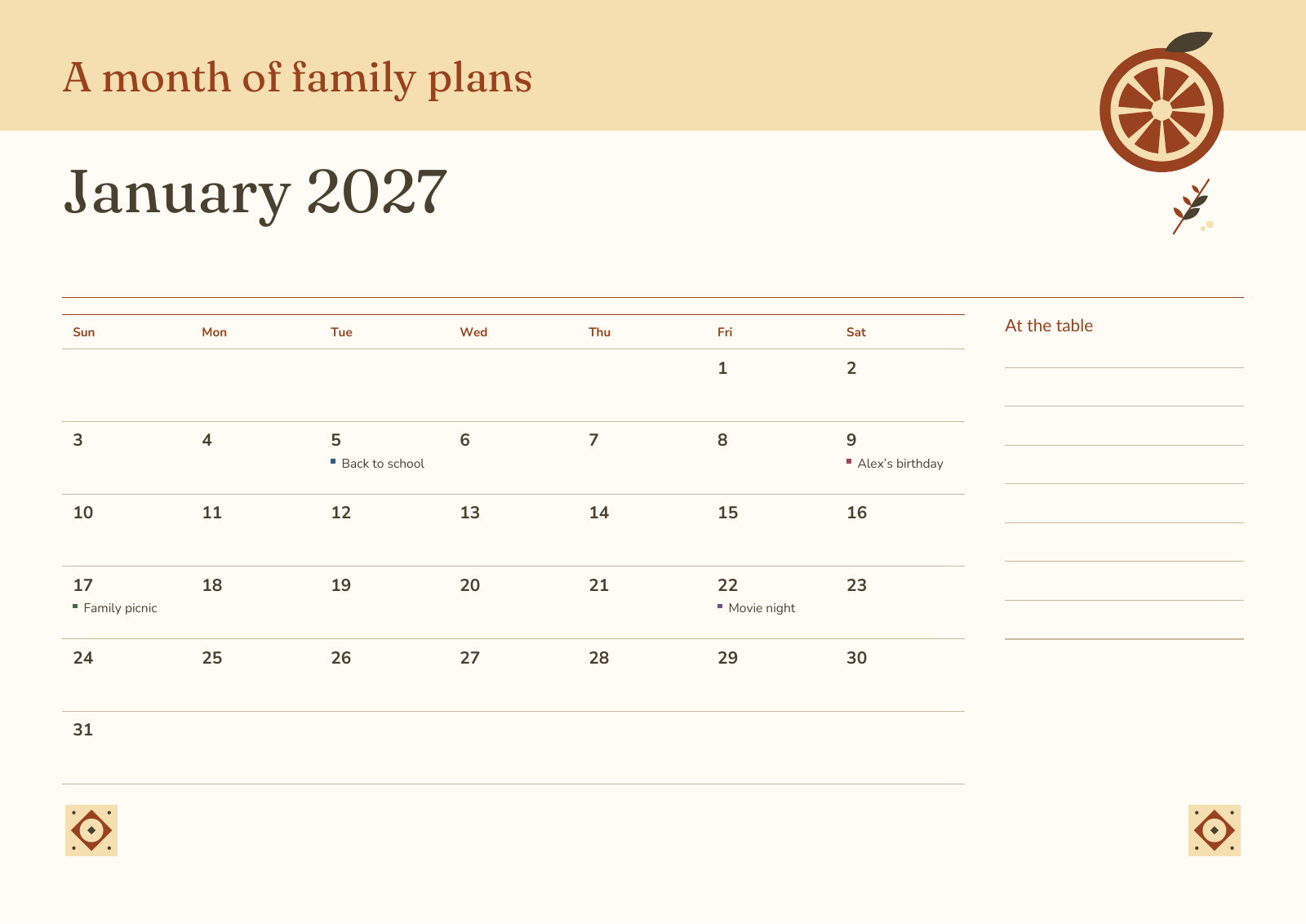
Use short names or initials to show who an entry belongs to: “Jo: dentist” is more useful than a colored square alone. Colors can help people scan the page, but the wording should still make sense in a black-and-white copy. Leave room for changes and use a notes column for details that would overcrowd a date cell.
3. A photo-led calendar with a clear date area
Let one photograph carry the visual theme. A landscape can sit above the grid; a portrait may work better beside it. Keep the date area on a plain background so the image does not compete with appointments. Choose a photo you have permission to use and inspect its sharpness in the exported file.
For a set of pages, similar crops and consistent margins help the photos belong together. You can change the picture each month while keeping the calendar structure familiar.
4. A weekly work page with room for unfinished tasks
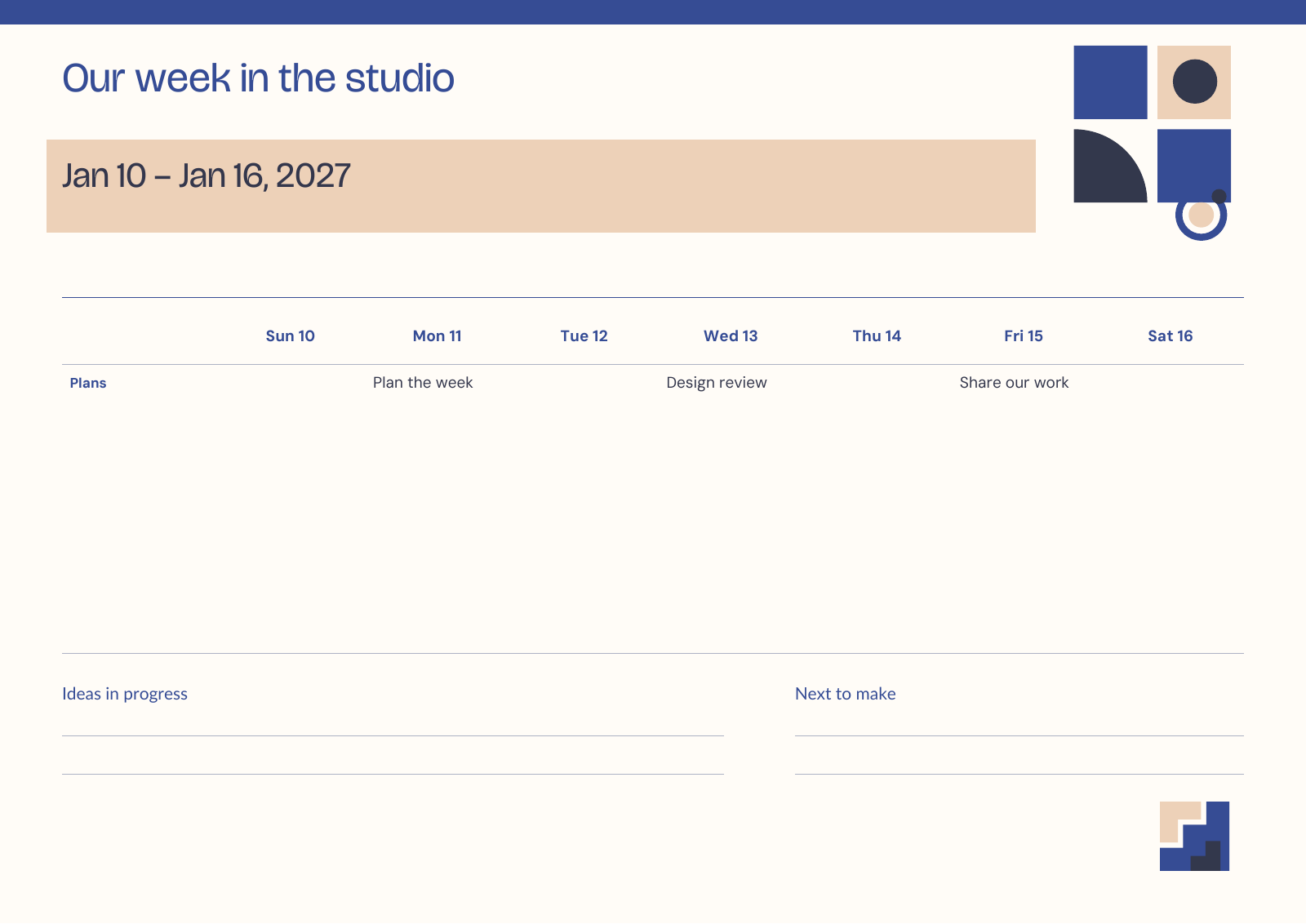
Separate fixed commitments from work that can move. Put meetings in the weekly layout and keep flexible tasks in a separate notes area. That gives you somewhere to move an unfinished task without pretending it already has an appointment time. Use a clear heading such as “This week” rather than filling the page with motivational text.
5. A seasonal palette with a consistent layout
Try sage and cream for spring, warm ochre for autumn, or deep green with an ivory date area for winter. Keep the page structure and date styling consistent as the accent changes. If people or event types already have assigned colors, preserve those meanings instead of reusing the same colors for decoration.
6. A year overview for a small set of milestones
An annual page works best when the labels are brief. Mark term boundaries, project launches or travel periods, then explain the symbols in a small key. Detailed appointments belong on a larger monthly or weekly page. Print a sample at the intended size before relying on tiny labels that looked readable while zoomed in.
Check dates in the 2027 calendar
7. A notes-first page for a specific activity
Build around a task you already do: meal planning, reading, a creative project or preparing for a class. Give the notes area a concrete heading such as “Meals to make” or “Questions for class.” Keep the calendar large enough for the deadlines and sessions that matter, and avoid adding extra sections simply to fill the page.
Turn the idea into a printable page
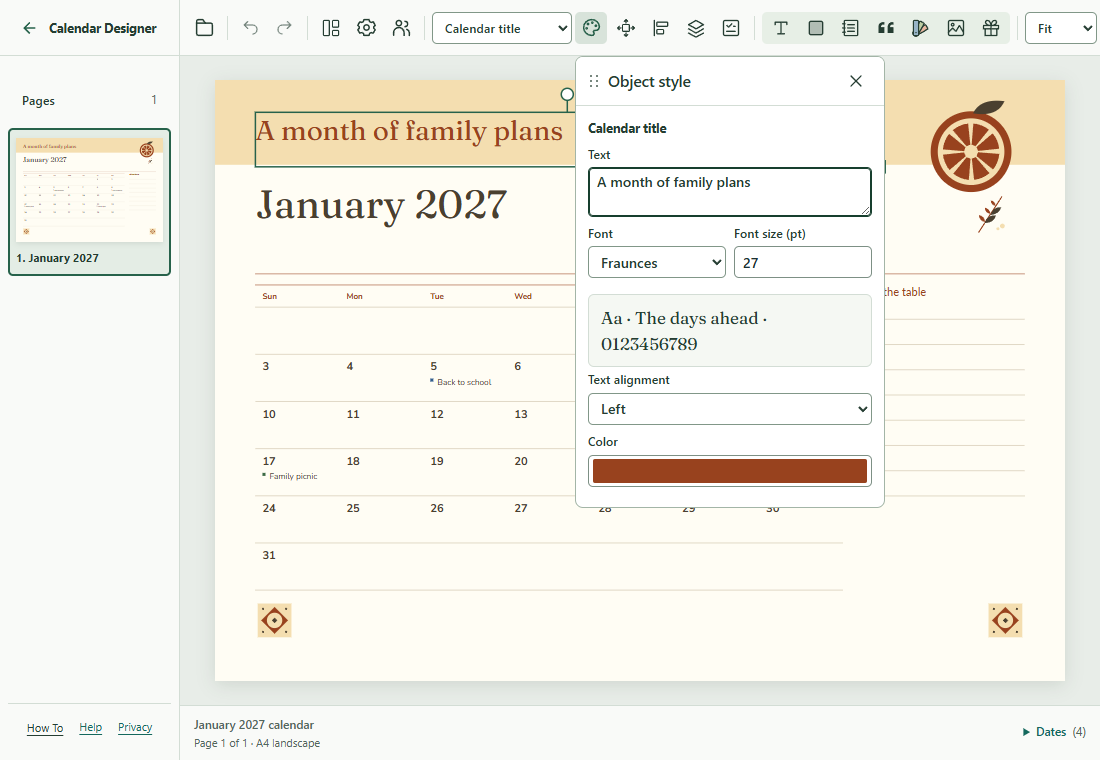
In Calendar Designer, select a template as a starting point, then set the calendar period, paper size and orientation. Select objects to change their text or appearance. Full template changes the arrangement; Style only keeps the arrangement while changing its appearance. Check the result after each change so the dates stay easy to read.
- Confirm the dates and any holidays against the schedule you actually follow.
- Check labels, contrast and writing space at the final print size.
- Export a PDF and print one test page before making a full set.
- Keep the JSON project backup so you can edit the design later.
Calendar Designer is free for personal, school, company and blog use. Calendars and templates made with it may not be sold. Projects stay in the current browser, and clearing browser data can remove them. Keep a backup before changing devices or starting another version.