Printable Calendar vs Digital Calendar: Which Fits Your Routine?
Compare paper and digital calendars for visibility, reminders, shared plans and changing dates, then choose how each will fit your day.
In this article
Choose a printable calendar when you want a plan you can see on a wall, desk or notebook page. Choose a digital calendar when you need event reminders, frequent changes or shared access from different places. Many people can use both: keep changing appointment details digitally and print a simpler overview for daily reference.
This comparison is published by TimeCubby, the maker of Calendar Designer. It compares practical workflows rather than ranking every calendar app. Google Calendar provides the digital examples below; its official notification and sharing documentation was checked on November 17, 2026. Other apps can work differently.
Compare the job each calendar will do
| Need | Printable calendar | Digital calendar |
|---|---|---|
| See the month in a shared space | A page stays visible where you place it | Requires opening or displaying the calendar |
| Receive a reminder | You need a separate reminder method | Many apps offer configurable event notifications |
| Change an appointment | Write a correction or print an updated copy | Edit the event in the app |
| Coordinate from different places | Copies need to be updated and redistributed | Sharing can let others view or edit, depending on permissions |
| Write open-ended notes | Leave a notes area or annotate the page | Available space and note features depend on the app |
| Use without a powered device | A printed page is ready to read | Device access is required; offline behavior varies |
Use paper for the information you want in sight
A kitchen calendar might show school closures and family plans. A desk page might show deadlines beside a short task list. Decide what you want to notice when you walk past the page, then leave out details that make the dates hard to scan.
TimeCubby Calendar Designer combines calendar layouts with editable text, artwork, photos and notes. It can export a PDF for printing, or PNG and JPG images. A straightforward date reference may need less design work; the regular calendar is a useful starting point for that.
Open the regular printable calendar
Paper also has limits. A page on the fridge cannot notify you before an appointment, and a printed copy does not update when an event changes elsewhere. Keep sensitive notes off a calendar that visitors or colleagues can see.
Use digital events for changes and reminders
A digital calendar is useful when a meeting moves often, needs a call link, or should prompt you before it starts. Check the settings instead of assuming that entering an event guarantees an alert.
Google Calendar lets people configure event notifications, including phone, browser and email options. Those settings are personal to each account. Sharing a calendar does not make everyone use the same reminders, and browser notifications also depend on the necessary browser settings.
Google Calendar: notification settings
Sharing needs the same attention. Google Calendar supports different access levels, including showing availability or giving access to event details and editing. Work and school administrators can restrict sharing. Choose the access people need and check it before relying on a shared calendar for coordination.
Google Calendar: sharing and permissions
Give each version a clear role if you use both
For a family, the digital calendar might hold appointment addresses, start times and reminders. A printed monthly page can show the week’s main commitments without copying every detail. For a project, keep changing meetings digitally and print only the major milestones.
- Choose which calendar holds the current appointment details.
- Decide who updates the printed overview when a date changes.
- Write a small “Updated” date on shared printouts.
- Check the overview during a regular planning session.
TimeCubby Calendar Designer produces a designed page and downloadable files. Those outputs are separate from a connected calendar app, so plan to update the printed overview yourself. Keeping the page selective makes that job more manageable.
Try one ordinary week before building a full system
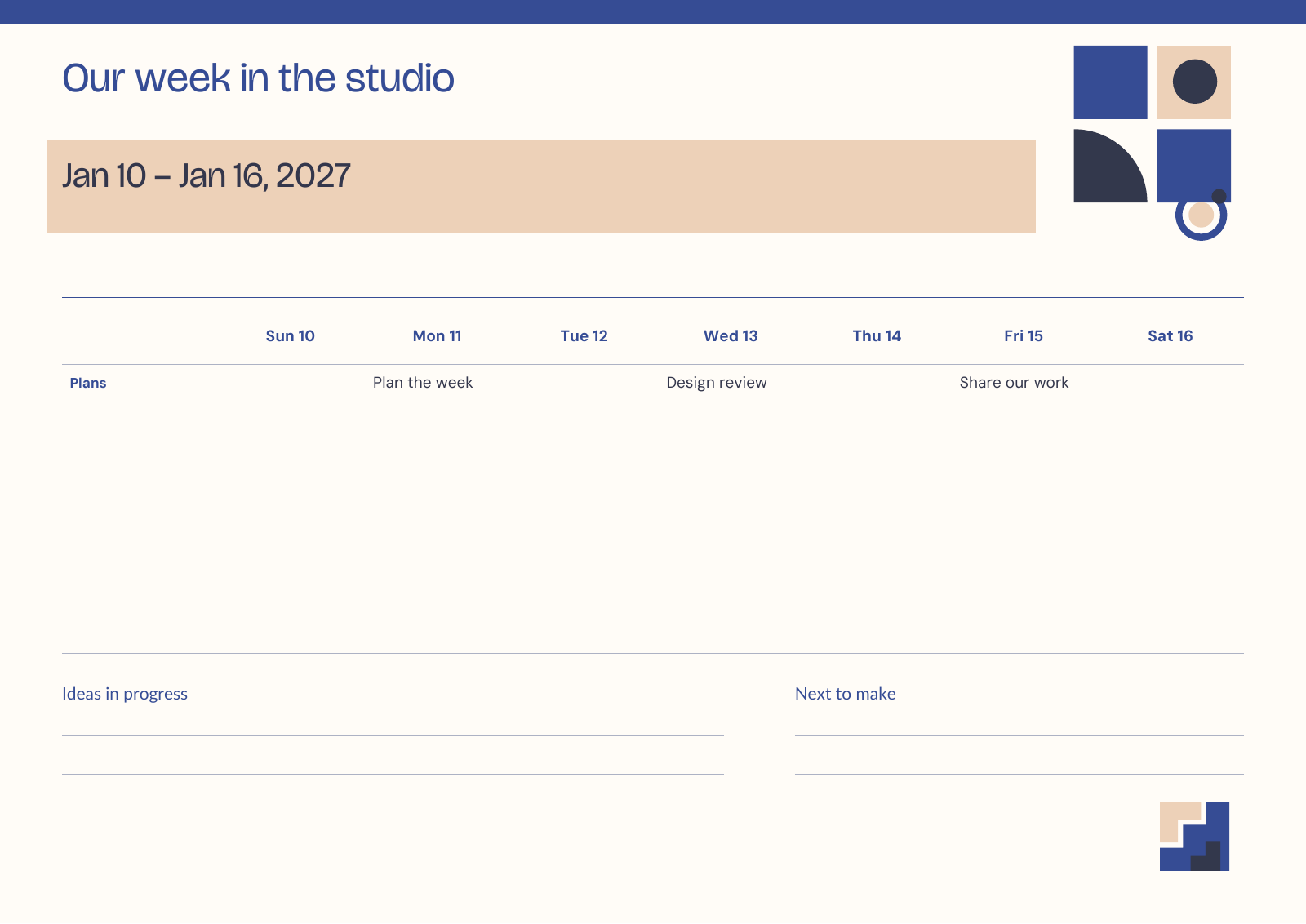
Pick a week with the kinds of commitments you actually handle. Use your chosen calendar, then notice what was difficult: remembering to look at it, making corrections, seeing other people’s changes, or finding room for notes. Adjust that specific part before preparing a whole year.
If you make a printable page in Calendar Designer, keep the JSON project backup as well as the PDF. Projects are stored in the current browser, so the backup matters when you clear browser data or move to another device.