How to Create a Scheduling Poll That Gets a Clear Answer
Set up a useful availability poll, ask people to mark workable times, and turn the responses into a confirmed group meeting.

In this article
To create a useful scheduling poll, decide who needs to attend, set the meeting length, and offer realistic times. Ask everyone to mark all the options they can make. Then check that the same people are available for the whole meeting before sending a final confirmation. TimeCubby Group Scheduling lets you collect those responses through a shared link without requiring accounts.
Create a group availability poll
Start with the meeting you need to arrange
A poll for a 90-minute planning session needs a different setup from a quick catch-up. Write down the duration and the people whose attendance is essential. Decide whether you need one particular date or a usual weekly or monthly pattern. These decisions make the responses easier to interpret later.
For example, a volunteer group may want as many members as possible, but still need its coordinator present. Agree on that rule before collecting votes. A popular time that excludes the coordinator would not solve that group’s problem.
Choose the right kind of availability
| Your question | Poll mode | What to confirm afterward |
|---|---|---|
| Which date works for this one meeting? | Specific dates | The selected date, local time and duration |
| What time usually works each week? | Weekly | The first meeting date and any exceptions |
| Which monthly pattern can we keep? | Monthly | Which months and holidays need a different plan |
Weekly and monthly polls collect usual availability. They do not establish that everyone is free on every future occurrence. If you already know the exact dates you need to compare, use specific dates. TimeCubby’s recurring patterns do not create a repeating calendar series.
Offer a manageable set of realistic options
- Use a title people will recognize, such as “Volunteer planning session.”
- Choose the event time zone and explain it in your invitation, especially for a recurring pattern.
- Set an earliest start, latest finish and meeting length that match the actual event.
- Include the dates or patterns you would genuinely be willing to choose.
- Check the setup before sharing the invitation link.
Avoid offering an entire month of evenings when the venue is only available on two days. A little preparation gives people fewer irrelevant options to work through. For an international group, check reasonable local hours before asking for availability.
Compare working hours across locations
Explain what a response means
Ask people to mark every workable option, rather than only their favorite. In TimeCubby they can use Available or Maybe and save a response under a display name. Tell the group when you will make the decision. That response deadline belongs in your message; you should not assume the tool will send a reminder for you.
An invitation could say: “Please mark every time you can attend our 90-minute volunteer planning session, including any Maybe options. Respond by Thursday at 6 p.m. in the event time zone. I’ll confirm the meeting here on Friday.” Replace the example deadline with the full date and time your group should follow.
Check the full window, then the names
A strong-looking half-hour slot does not guarantee a workable 90-minute meeting. Look across the complete window and check whether the same people remain available. Treat a Maybe as something to clarify when that person’s attendance is essential.
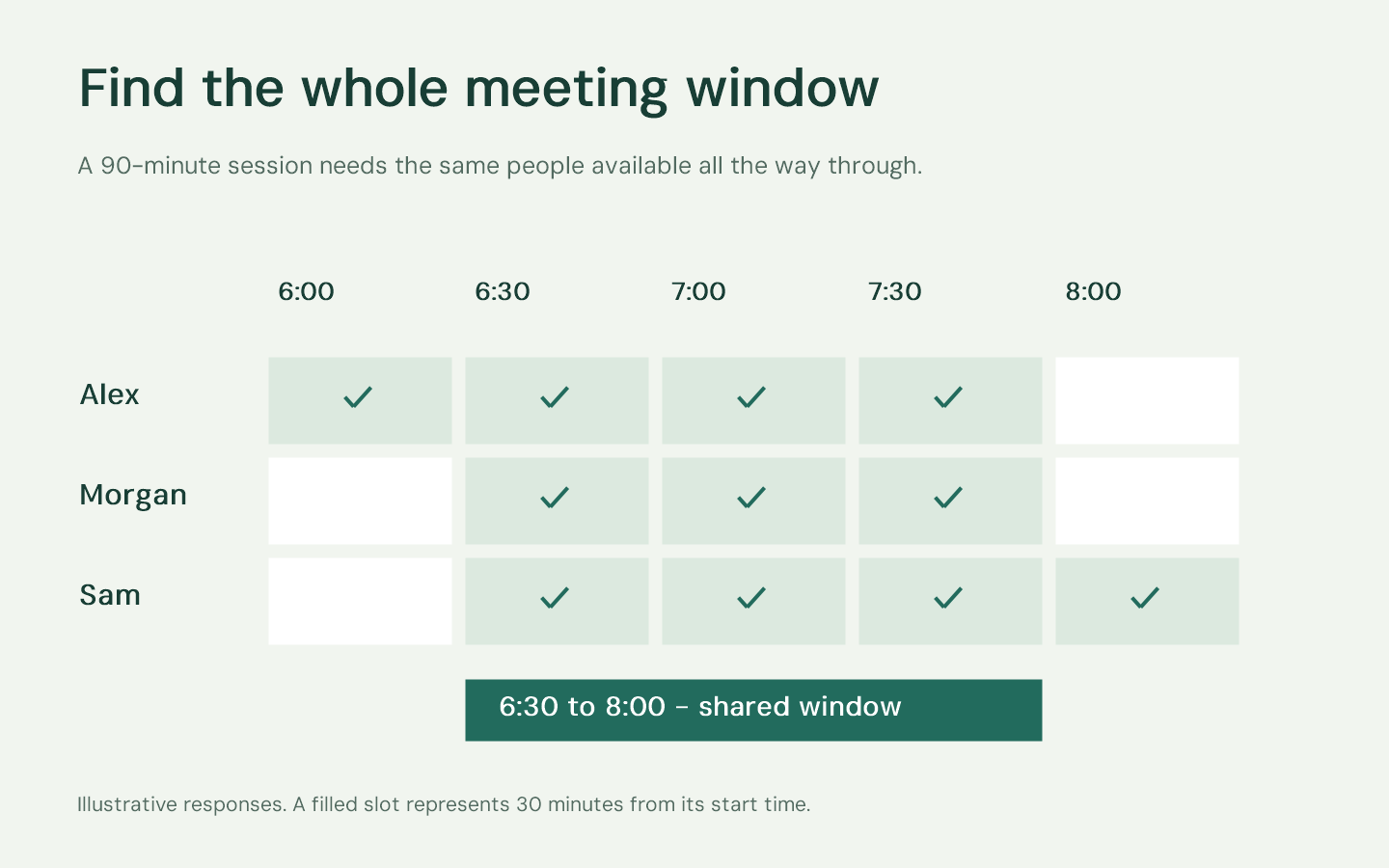
If there is no suitable overlap, ask what can change. A shorter agenda or a different day may help. Keep the original duration unless the group agrees to change it; choosing an incomplete window quietly creates a different meeting from the one people answered about.
Send the decision and keep the link within the group
Confirm the full date, start and end time, time zone, and location or call link in the group’s existing chat or email thread. TimeCubby does not send that message for you. A selected specific-date meeting offers an .ics calendar download; a weekly or monthly pattern can be copied and shared.
Anyone with a TimeCubby invitation link can see names and submitted availability and add a response. Share it with the intended group and use recognizable display names without adding unnecessary personal details. Anonymous editing access is remembered in the browser, and events expire one year after creation.
After sending the confirmation, ask people to report any changes in the same thread. That keeps later updates alongside the agreed time.